How to Use Black Screen for Monitor Testing
When performing monitor testing or protecting OLED screens, a clean, full-screen black background is an essential tool. With BlackScreen, you can quickly achieve a black screen display to detect dead pixels, brightness inconsistencies, or color anomalies without installing additional software.
This guide provides detailed instructions on using BlackScreen for various monitor testing operations and offers best practice recommendations to ensure accurate and reliable results.
Why Use a Black Screen for Monitor Testing?
A black screen background helps reveal the following issues:
- Dead/Hot Pixel Detection: Bright or non-illuminated pixels are most visible against a black background
- Color Uniformity: Brightness and color deviations on OLED or LCD screens are easier to spot
- Light Leakage Check: Light bleed along screen edges or dark areas
- OLED Screen Protection: Prolonged black screens can reduce the risk of burn-in
Compared to traditional software tools, BlackScreen is a web-based solution that requires no installation, offers cross-platform compatibility, and is ideal for quick or temporary testing needs.
How to Perform Black Screen Testing on BlackScreen
1. Visit the Website
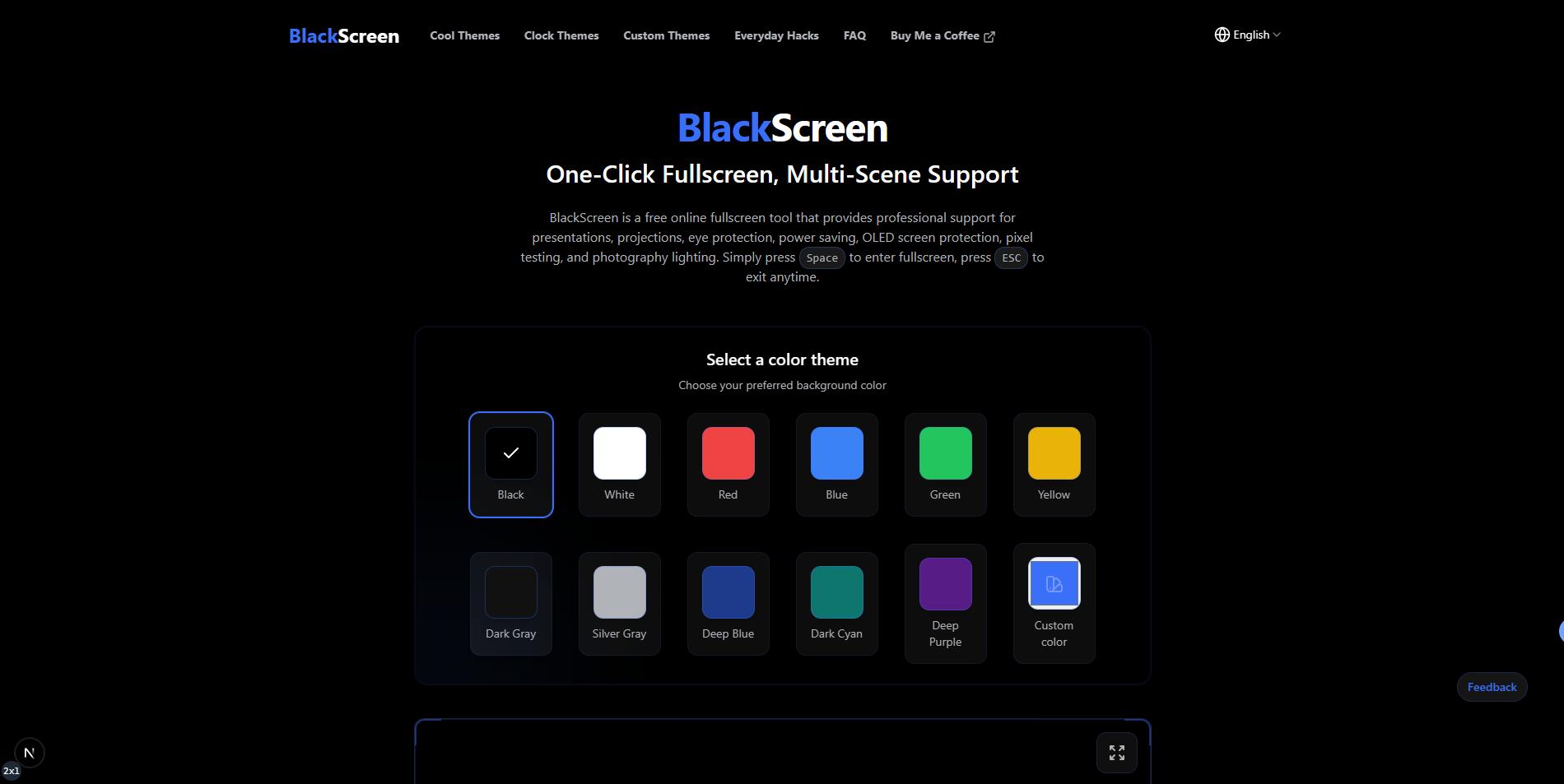
Open your browser and navigate to https://www.blacksscreen.com. The website will load a black screen interface by default in full-screen mode.
2. Switch to Full-Screen Mode
Full-screen mode maximizes the display area for more accurate testing:
- Click the “Full Screen” button in the center of the page
- Or use the spacebar shortcut to enter/exit full-screen quickly
- For some browsers, press F11 (Windows) or Ctrl + Cmd + F (Mac) to force full-screen
Once full-screen is enabled, any UI distractions disappear, allowing you to observe fine pixel details.
3. Adjust Black Screen Type
BlackScreen offers multiple black themes to meet different testing needs:
- Pure Black Mode: For dead pixel, light bleed, and color uniformity checks
- Dark Gray Mode: Helps examine brightness gradients or low-light light bleed
- Animated/Gradient Themes: Observe OLED screen behavior under dynamic content (not core testing but useful for analysis)
After selecting the appropriate theme, ensure your screen brightness and contrast are set to standard levels for accurate results.
4. Use Auxiliary Tools to Enhance Accuracy
- Magnifier or Screen Zoom: Makes it easier to detect tiny dead pixels
- Timer Function: Use BlackScreen’s timer to monitor screen changes and assess dark area or highlight drift
- Multi-Screen Mode: During dual or multi-monitor tests, display the black screen on one monitor while using another for settings or recording results
5. Safely Exit After Testing
- Press Esc or spacebar to exit full-screen
- Close the browser tab to avoid interfering with other tasks
- For OLED screens, consider briefly displaying a colored or white full-screen afterward to recalibrate and prevent uneven brightness from prolonged black exposure
Best Practices for Monitor Testing
- Test in a dark room: Avoid interference from ambient light
- Test by screen sections: Divide the screen into quadrants and observe each area step by step
- Repeat tests: Especially for new or second-hand monitors, perform at least two rounds of black screen checks
- Document anomalies: Take photos or notes for after-sales support or maintenance
Desktop vs. Mobile Devices
Desktop Monitors
- Recommend using monitors with stable stands
- Disable screen savers or power-saving modes to prevent interruptions
Laptops/Tablets
- Enable landscape orientation lock
- Disable automatic brightness adjustment
- Ensure sufficient battery to avoid sleep mode interfering with testing
Additional Advantages of BlackScreen
- Cross-Platform Compatibility: Works on Windows, Mac, Linux, tablets, and smartphones
- No Software Installation: Ready to use instantly, suitable for temporary tests or on-site demonstrations
- Quick Operation: Full-screen toggle via spacebar or click, easy theme switching
- Minimal Visual Distraction: Clean interface supports precise observation of pixels and brightness
Conclusion
BlackScreen is an efficient tool for black screen monitor testing. Whether detecting dead pixels, checking color uniformity, or protecting OLED screens, it provides a clean, full-screen black background.
Following the steps outlined in this guide, you can quickly get started and achieve:
- Full-screen black display
- Multi-theme and brightness adjustment tests
- Efficient anomaly recording
- Cross-device compatibility and flexible operation
Visit BlackScreen now and start your monitor black screen testing journey!
Popular Articles
View All ArticlesBlack Screen for Presentations The Ultimate Guide
Learn how to quickly switch to black screen during presentations, classrooms, or meetings using BlackScreen, with support for Google Slides and PowerPoint to enhance presentation control. Provides full-screen black screen operation tips and best practices.
How to Use BlackScreen Sessions for Focus & Relaxation
Learn how to schedule timed black screens with BlackScreen for focus training or eye relaxation. Includes step-by-step instructions, recommended settings, and real usage examples.
What to Do if My 3DS Screen Is Lit Black - Complete Troubleshooting Guide
Discover effective solutions for Nintendo 3DS black screen issues. Learn troubleshooting steps, diagnostic methods, and how online tools like BlackScreen can help test and resolve display problems.
Can You Play Split Screen on Black Ops 6? Ultimate Guide to Local Co-Op Gaming
Discover how to play split-screen in Call of Duty: Black Ops 6, understand platform limitations, setup instructions, and learn how BlackScreen tools enhance your gaming experience.
Why Does My PC Screen Keep Going Black? - Complete Windows Troubleshooting Guide
Discover why your PC screen keeps going black unexpectedly. Learn Windows-specific fixes for display issues, GPU driver problems, and how to use BlackScreen online tools for diagnosis and productivity.