How to Use BlackScreen Sessions for Focus & Relaxation
In today's high-intensity work environment, staring at screens for extended periods can cause eye strain and distraction. With BlackScreen, you can easily set timed black screens for focus training, the Pomodoro technique, or eye relaxation, helping restore concentration and visual comfort.
This guide will walk you through creating timed black screen sessions on BlackScreen, with practical example screenshots and best practice tips.
Why Use Timed Black Screens?
Using timed black screens helps to:
- Improve focus: A fully black screen reduces visual distractions, ideal for Pomodoro sessions or deep work training.
- Relax your eyes: Scheduled black screen breaks alleviate eye strain and blue light stress.
- Structure work and rest: Timed sessions create a regular workflow, preventing prolonged screen exposure.
- Flexible usage: Works on computers, tablets, or large displays without extra hardware.
Compared to traditional reminder apps or eye care tools, BlackScreen provides a full-screen immersive black environment, making it more intuitive and effective.
How to Set Up Timed Black Screens on BlackScreen
1. Visit the Website
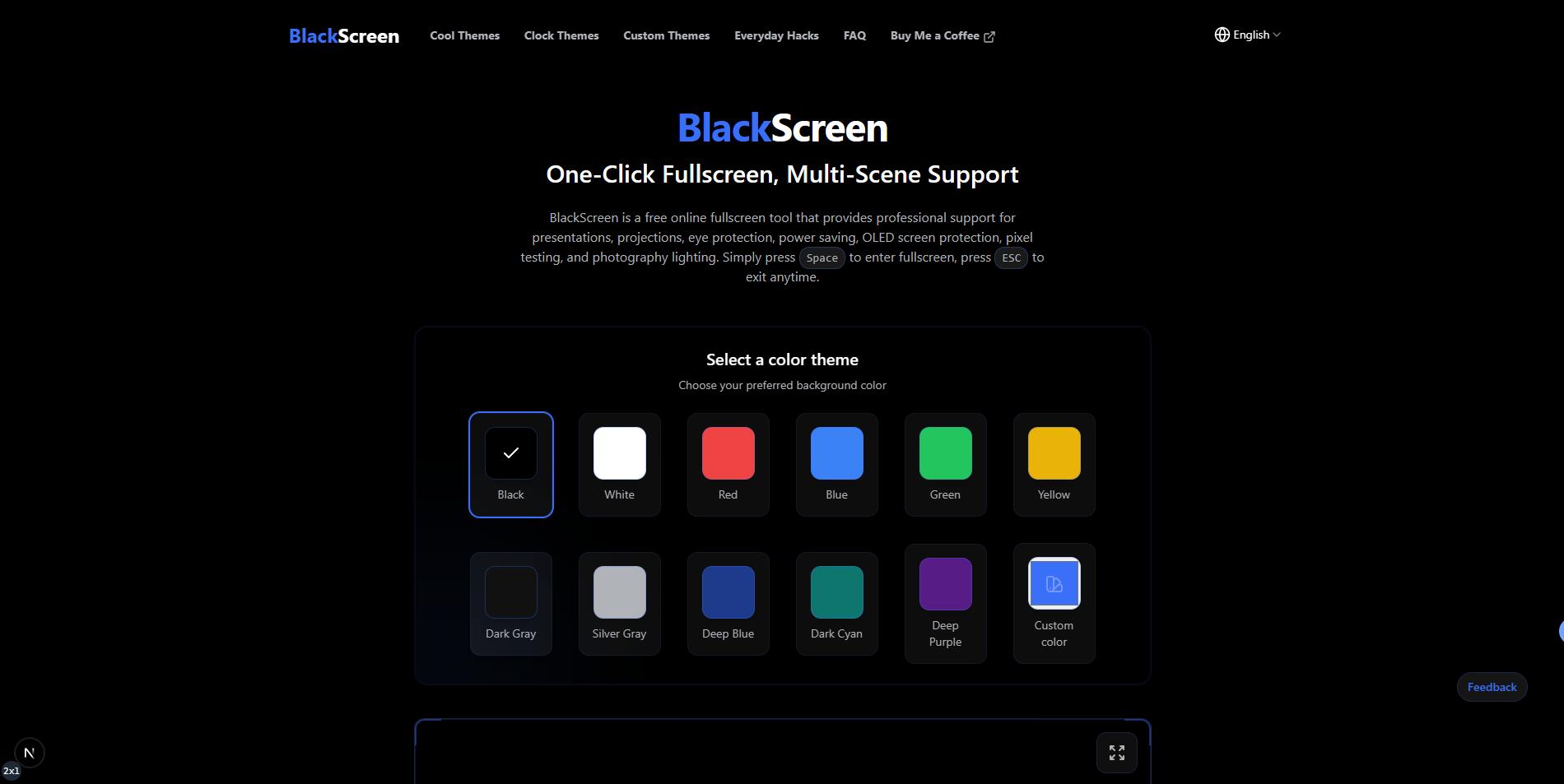
Open your browser and go to https://www.blacksscreen.com. The website loads directly into a black screen interface by default.
2. Enter Full-Screen Mode
For an immersive experience and minimal distractions:
- Click the “Full Screen” button in the center of the page.
- Or use the Spacebar to enter/exit full screen.
- Some browsers support F11 (Windows) or Ctrl + Cmd + F (Mac) to force full screen.
Full-screen mode ensures you remain undisturbed during focus or eye relaxation sessions.
3. Choose Black Screen Type
BlackScreen offers different black backgrounds depending on your purpose:
- Pure black mode: Ideal for eye relaxation or deep work.
- Dark gray mode: Reduces brightness impact, suitable for short breaks.
- Gradient or subtle animation mode: Supports gentle visual training or meditation.
4. Enable the Timer
Timed black screens help you schedule focus and rest:
- Select Timer in the bottom-right corner or settings panel.
- Set your work duration (e.g., 25 minutes) and break duration (e.g., 5 minutes).
- Start the timer—BlackScreen will automatically switch to black or restore the normal screen at the scheduled times.
💡 Tip: Combine with the Pomodoro method by using black screen sessions for work blocks and exiting full screen during breaks for an efficient cycle.
5. After the Session
- Press Esc or the Spacebar to exit full screen.
- For eye relaxation sessions, do 1–2 minutes of eye exercises.
- Maintain regular black screen schedules to build a healthy eye care habit.
BlackScreen Timed Session Best Practices
- Moderate ambient light: Avoid glare on the screen to protect your eyes.
- Segmented focus: Work blocks of 20–50 minutes, breaks of 5–10 minutes are recommended.
- Eye exercises: Every 50–60 minutes, close your eyes or look into the distance for 1–2 minutes.
- Track habits: Use logs or screenshots to monitor focus time and improve self-management.
Desktop vs. Mobile Differences
Desktop Monitors
- Use a large screen for immersion.
- Disable screensavers or energy-saving modes to prevent interruptions.
Laptops/Tablets
- Lock orientation to prevent auto-rotation.
- Disable auto-brightness.
- Ensure sufficient battery.
Additional Advantages of BlackScreen
- No download required: Ready to use in a browser.
- Cross-platform: Supports Windows, Mac, Linux, tablets, and phones.
- Easy to use: Full-screen and timer features are intuitive.
- Minimal visual distraction: Clean interface enhances focus training.
Conclusion
BlackScreen is more than just a monitor test tool—it’s ideal for timed black screen focus training and eye relaxation. Following this guide, you can:
- Create full-screen black screen focus sessions.
- Flexibly schedule work and break periods.
- Combine with the Pomodoro technique for higher productivity.
- Protect your eyes and build healthy usage habits.
Visit BlackScreen now to start your focus and eye relaxation sessions!
Popular Articles
View All ArticlesBlack Screen for Presentations The Ultimate Guide
Learn how to quickly switch to black screen during presentations, classrooms, or meetings using BlackScreen, with support for Google Slides and PowerPoint to enhance presentation control. Provides full-screen black screen operation tips and best practices.
How to Use Black Screen for Monitor Testing
Learn how to use BlackScreen to perform monitor testing, detect dead pixels, check color uniformity, and protect OLED screens. Step-by-step guide for full-screen black display and practical testing scenarios.
What to Do if My 3DS Screen Is Lit Black - Complete Troubleshooting Guide
Discover effective solutions for Nintendo 3DS black screen issues. Learn troubleshooting steps, diagnostic methods, and how online tools like BlackScreen can help test and resolve display problems.
Can You Play Split Screen on Black Ops 6? Ultimate Guide to Local Co-Op Gaming
Discover how to play split-screen in Call of Duty: Black Ops 6, understand platform limitations, setup instructions, and learn how BlackScreen tools enhance your gaming experience.
Why Does My PC Screen Keep Going Black? - Complete Windows Troubleshooting Guide
Discover why your PC screen keeps going black unexpectedly. Learn Windows-specific fixes for display issues, GPU driver problems, and how to use BlackScreen online tools for diagnosis and productivity.