Black Screen for Presentations The Ultimate Guide
During presentations or classroom teaching, timely switching to a black screen can help the audience focus, hide content, or control pacing. With BlackScreen, you can quickly achieve full-screen black display in Google Slides, PowerPoint, or any screen presentation environment without installing additional software.
This guide will teach you how to efficiently use BlackScreen in various presentation scenarios and provide best practice tips to make your presentations more professional and controllable.
Why Use Black Screen During Presentations?
Black screens offer the following advantages in presentation scenarios:
- Focus Attention: Temporarily hide screen content so the audience can concentrate on your explanation or discussion.
- Control Pacing: Switching to black screen allows for a smooth transition to the next section.
- Protect Privacy or Sensitive Content: Hide the screen during preparation or operational steps.
- Reduce Visual Fatigue: Long presentations can benefit from occasional black screen to give the audience a short visual break.
Compared with minimizing windows or turning off the projector, BlackScreen provides one-click full-screen black display with intuitive operation and a consistent visual effect.
How to Quickly Switch to Black Screen on BlackScreen
1. Visit the Website
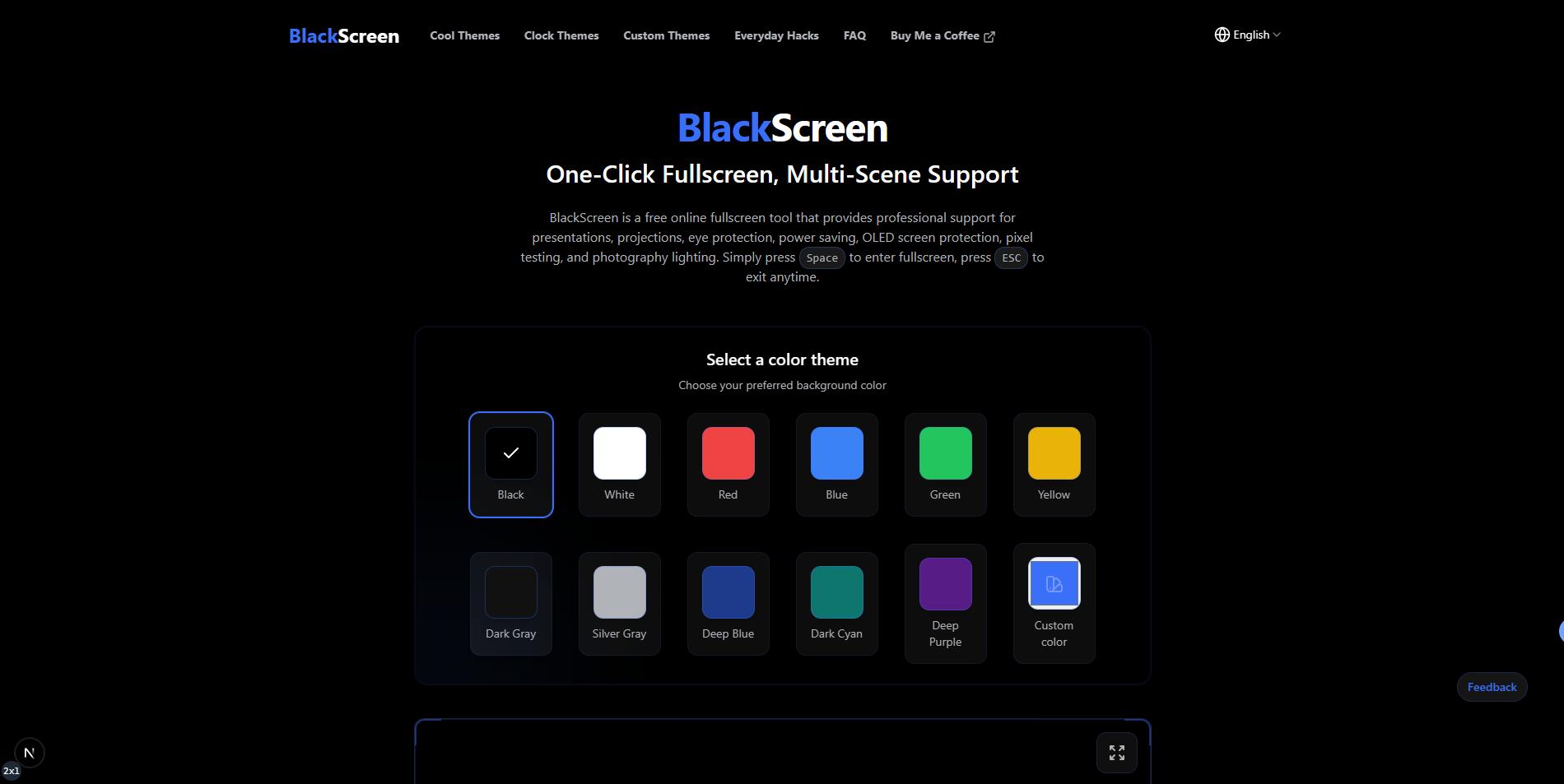
Open your browser and go to https://www.blacksscreen.com. The page will immediately display a full-screen black background.
2. Toggle Full-Screen Mode
Full-screen mode covers the entire display and prevents content leakage:
- Click the “Full Screen” button in the center of the page.
- Use the Spacebar shortcut to quickly enter or exit full-screen.
- On some browsers, press F11 (Windows) or Ctrl + Cmd + F (Mac) to force full-screen.
Once full-screen is active, any distracting elements in the presentation or classroom will disappear, making the black screen look more professional.
3. Use With Google Slides/PowerPoint
Black screen can be integrated with slide software during presentations:
-
Google Slides
-
In presentation mode, press B to switch to black screen.
-
With BlackScreen, you can open the black screen page in a browser while still controlling slides in Google Slides.
-
PowerPoint
-
In presentation mode, press B (black screen) or W (white screen).
-
BlackScreen can also be used on other screens or in dual-screen mode to provide a clean black screen on the auxiliary display.
This approach allows flexible control of primary and secondary screen content.
4. Adjust Black Screen Style
BlackScreen offers multiple black themes to suit different scenarios:
- Pure Black Mode: Standard black screen, ideal for focused presentations.
- Dark Gray Mode: Reduces brightness impact, suitable for long meetings.
- Gradient or Animated Themes: For dynamic presentations or transitions (optional).
Ensure brightness and contrast are properly adjusted during switching to avoid visual discomfort for the audience.
5. Quick Operations and Multi-Screen Usage
- Shortcut Operations: Spacebar or click to toggle full-screen black screen quickly.
- Dual or Multi-Screen Scenarios: Present content on the main screen while using BlackScreen on the secondary screen for controlled visibility and privacy.
- Timed Switching: Integrate with presentation scripts or timers to automatically control black screen display duration.
6. Safe Exit
- Press Esc or Spacebar to exit full-screen.
- Close the browser tab to restore the presentation state.
- After the session, briefly display a color or white screen for calibration.
Best Practices for Presentation Black Screens
- Practice Switching in Advance: Familiarize yourself with shortcuts and full-screen operations to avoid last-minute confusion.
- Segmented Presentation: Control black screen or content display according to projection areas.
- Match with Script Timing: Switch to black screen before key explanations or discussion segments.
- Test Multi-Screen Setup: Ensure main screen, projector, and secondary screen display consistently.
Desktop vs. Mobile Devices
Desktop/Laptop
- Supports full-screen and multi-screen operation.
- Turn off auto-brightness or power-saving modes to ensure stable black screen display.
Tablet or Touch Devices
- Recommended to use in landscape orientation.
- Disable auto-lock or sleep functions.
- Ensure sufficient battery to prevent black screen from disappearing mid-presentation.
Additional Advantages of BlackScreen
- No Software Installation Required: Ready to use instantly, suitable for ad-hoc presentations.
- Cross-Platform Compatibility: Works on Windows, Mac, Linux, tablets, and phones.
- Fast Switching: Spacebar or click to black screen with intuitive operation.
- Minimal Interface: No ads or distractions, providing a professional black screen effect.
Conclusion
BlackScreen is an efficient tool for quickly switching to black screen in presentations, classrooms, and meetings. Following the steps in this guide, you can easily achieve:
- One-click full-screen black display.
- Seamless Google Slides / PowerPoint integration.
- Multi-screen or dual-screen control.
- Efficient information protection and presentation pacing control.
Visit BlackScreen now to make your presentations more professional and controllable!
Popular Articles
View All ArticlesHow to Use BlackScreen Sessions for Focus & Relaxation
Learn how to schedule timed black screens with BlackScreen for focus training or eye relaxation. Includes step-by-step instructions, recommended settings, and real usage examples.
How to Use Black Screen for Monitor Testing
Learn how to use BlackScreen to perform monitor testing, detect dead pixels, check color uniformity, and protect OLED screens. Step-by-step guide for full-screen black display and practical testing scenarios.
What to Do if My 3DS Screen Is Lit Black - Complete Troubleshooting Guide
Discover effective solutions for Nintendo 3DS black screen issues. Learn troubleshooting steps, diagnostic methods, and how online tools like BlackScreen can help test and resolve display problems.
Can You Play Split Screen on Black Ops 6? Ultimate Guide to Local Co-Op Gaming
Discover how to play split-screen in Call of Duty: Black Ops 6, understand platform limitations, setup instructions, and learn how BlackScreen tools enhance your gaming experience.
Why Does My PC Screen Keep Going Black? - Complete Windows Troubleshooting Guide
Discover why your PC screen keeps going black unexpectedly. Learn Windows-specific fixes for display issues, GPU driver problems, and how to use BlackScreen online tools for diagnosis and productivity.